• Home
  • Crafts
    • Wreaths
    • Back to School Crafts
    • Christmas Crafts
    • Father’s Day Crafts
    • Fourth of July Crafts
    • Halloween Crafts
    • Kid’s Projects
    • Mother’s Day Crafts
    • Thanksgiving Crafts
    • Valentine’s Day Crafts
  • Recipes
    • Christmas Recipes
    • Fourth of July Recipes
    • Halloween Recipes
    • Thanksgiving Recipes
    • Appetizers
    • Beverages
    • Breakfast
    • Dessert
    • Main Dish
    • Side Dish
    • Soups & Salads
    • Snacks
  • Freebies
    • Back to School Printables
    • Christmas Printables
    • Father’s Day Printables
    • Fourth of July Printables
    • Halloween Printables
    • Mother’s Day Printables
    • Thanksgiving Printables
    • Valentine’s Day Printables
  • xTool
  • About
    • About CCL
    • Privacy Policy
    • Disclosure
    • Contact Us
    • Email
    • Facebook
    • Instagram
    • Pinterest
    • RSS
    • Twitter

Create Craft Love

April 17, 2019 ·

Using the Attach Function in Cricut Design Space

Cricut Projects

  • Facebook
  • Twitter

This post may contain affiliate links. See my disclosure policy for more details.

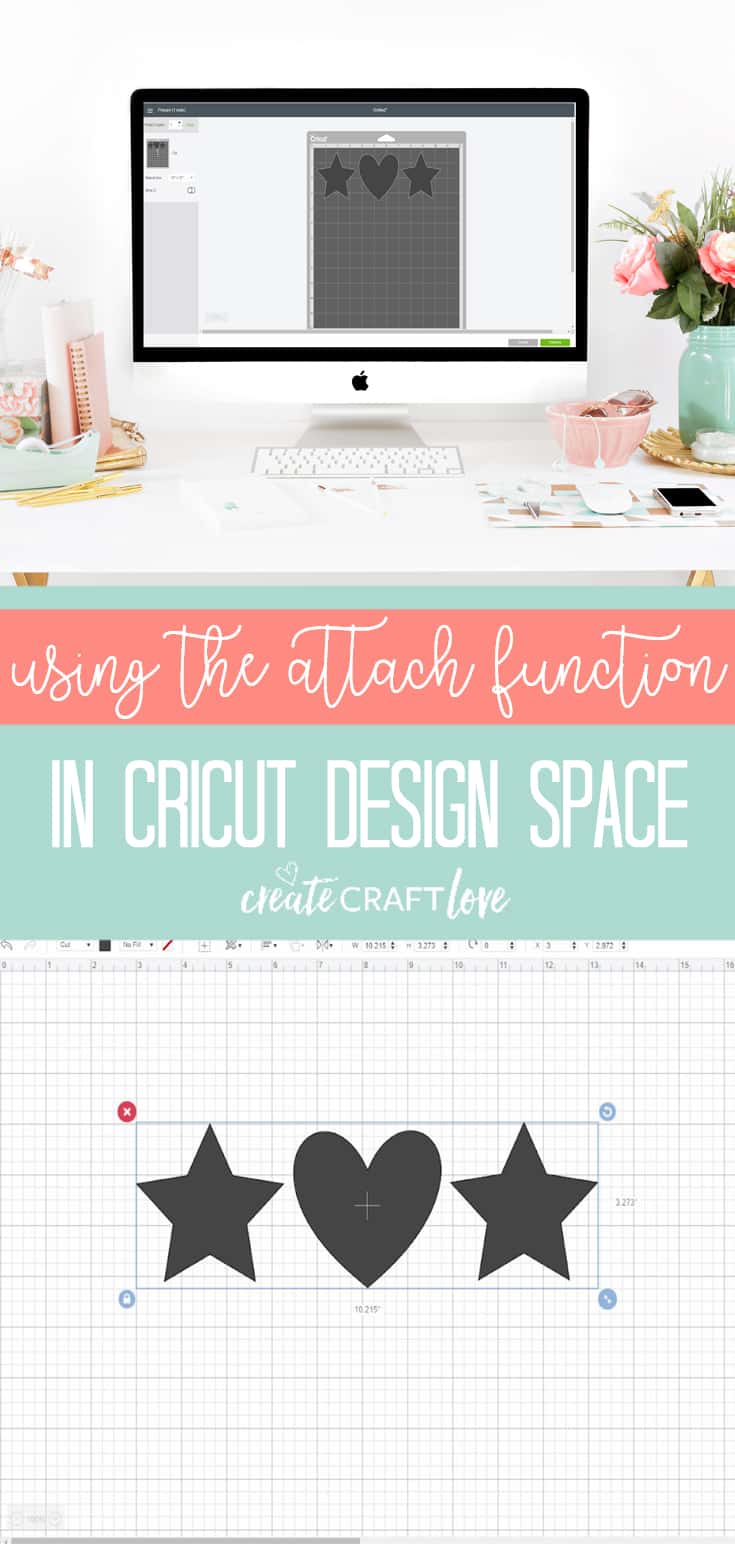
The Attach Function in Cricut Design Space allows you to hold the position of your images or text!
Using the attach function in Cricut Design Space! #cricut #designspace

We’ve all been there.  You get done arranging everything just like you want it and then when you click cut, it is a jumbled mess.  That is where the attach function comes in handy!

Using the Attach Function in Cricut Design Space

Cricut has designed it’s software to cut in paper saver mode.  It will automatically group images/layers together to save paper.  However, if you are working with a vinyl or iron on project, the spacing may be of importance.  Attaching holds your cut position as you arranged on your canvas.

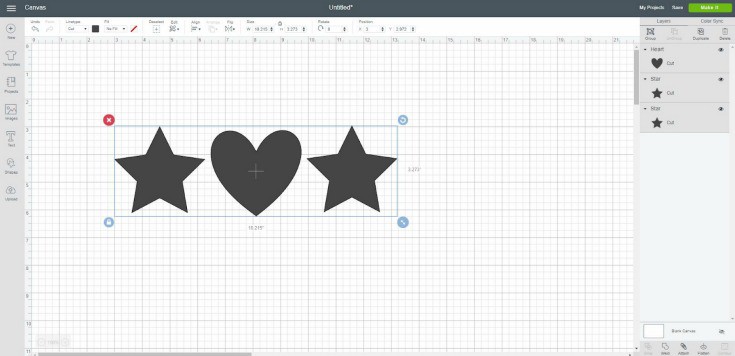
Add your images to the canvas and arrange how you would like it to cut.
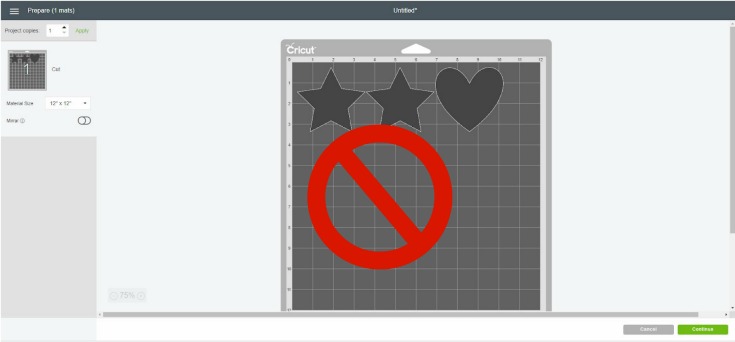
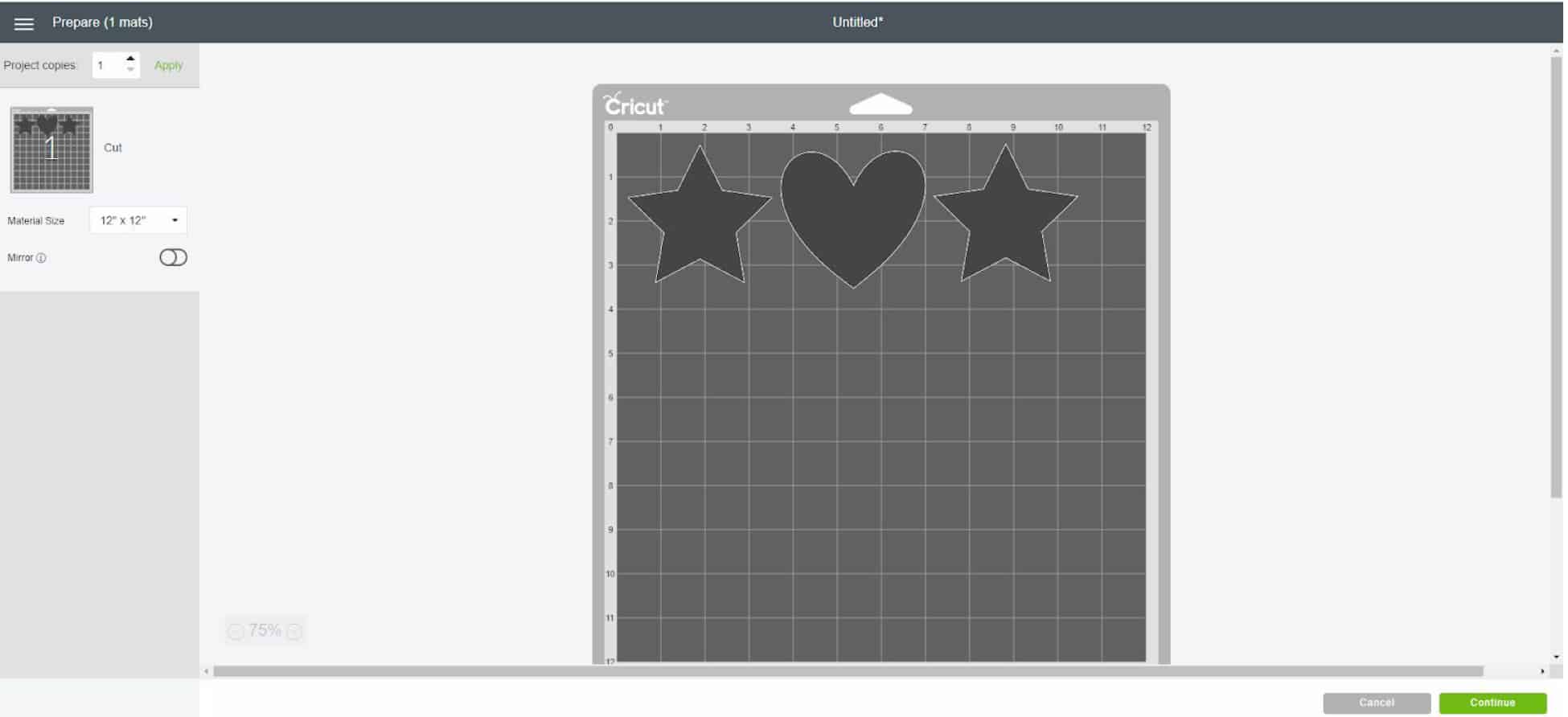
If you don’t click attach, your images will appear as pictured below on the cut screen.  OUT OF ORDER!
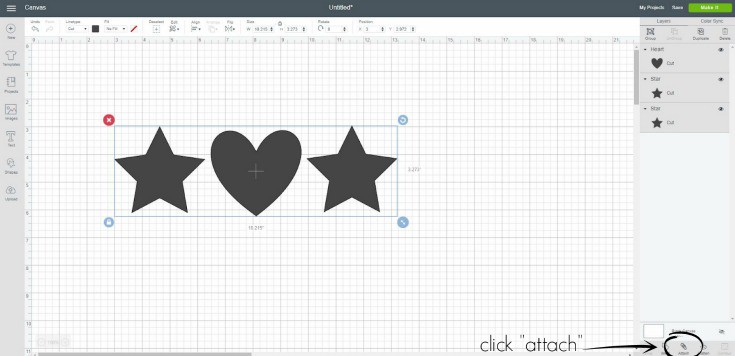
Be sure to select all of your images and then click “attach” at the bottom of the layers panel.  It should now say “attached” at the top of the layers panel.  Click “make it now”.
This will hold the cut position so that the images will appear in the correct placement. Now the images appear exactly where you placed them on your canvas.
We will explore this option further when discussing other functions of Cricut Design Space!

Using the attach function in Cricut Design Space! #cricut #designspace


About Us

We are passionate about sharing simple, fun DIY projects that anyone can tackle—whether you're a seasoned crafter or just getting started. From seasonal décor to everyday crafts, we love inspiring others to make something beautiful with their own two hands.

« Nurse Week Tshirt | Free SVG File
Floral Monogram Mini Sign with Cricut »

Popular Posts

Winter Decorations for After Christmas
This Gold Leaf Mason Jar Vase is keeping with the trends this spring! #spring #gold #goldleaf #masonjars

HALLOWEEN

Review these Trick or Treat Safety Tips to guarantee everyone has a safe and happy Halloween! via createcraftlove.com
Halloween Silhouette Lanterns #halloween #halloweendecor

THANKSGIVING

I whipped up this Paper Leaf Garland in under five minute for less than five dollars! via createcraftlove.com

CHRISTMAS

photo gift wrap
stamped gift wrap
hand sewn gift tags
© 2019 · Create Craft Love·
  • Pinterest
  • Facebook
  • Twitter