• Home
  • Crafts
    • Wreaths
    • Back to School Crafts
    • Christmas Crafts
    • Father’s Day Crafts
    • Fourth of July Crafts
    • Halloween Crafts
    • Kid’s Projects
    • Mother’s Day Crafts
    • Thanksgiving Crafts
    • Valentine’s Day Crafts
  • Recipes
    • Christmas Recipes
    • Fourth of July Recipes
    • Halloween Recipes
    • Thanksgiving Recipes
    • Appetizers
    • Beverages
    • Breakfast
    • Dessert
    • Main Dish
    • Side Dish
    • Soups & Salads
    • Snacks
  • Freebies
    • Back to School Printables
    • Christmas Printables
    • Father’s Day Printables
    • Fourth of July Printables
    • Halloween Printables
    • Mother’s Day Printables
    • Thanksgiving Printables
    • Valentine’s Day Printables
  • xTool
  • About
    • About CCL
    • Privacy Policy
    • Disclosure
    • Contact Us
    • Email
    • Facebook
    • Instagram
    • Pinterest
    • RSS
    • Twitter

Create Craft Love

May 1, 2019 ·

How to Contour Images in Cricut Design Space

Cricut Projects

  • Facebook
  • Twitter

This post may contain affiliate links. See my disclosure policy for more details.

Manipulate images by learning how to Contour Images in Cricut Design Space!
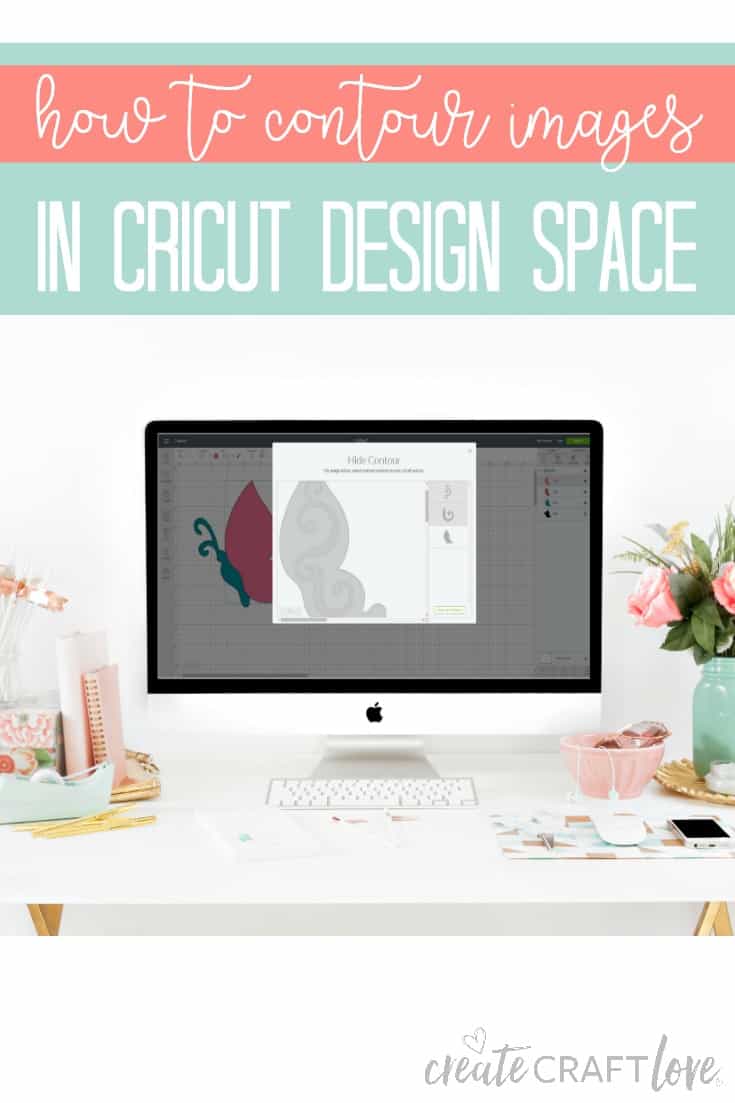
How to contour images in Cricut Design Space! #cricut #designspace


When I first started using Cricut Design Space, I would find images I wanted to use in the Cricut library but there would be a single detail that I did not want or need.  It wasn’t until I discovered the contour tool that I was able to start manipulating these images into what I wanted. 

Contouring is different from hiding.  Hiding hides the ENTIRE layer.  Contouring hides a PART of the layer.

How to Contour Images in Cricut Design Space

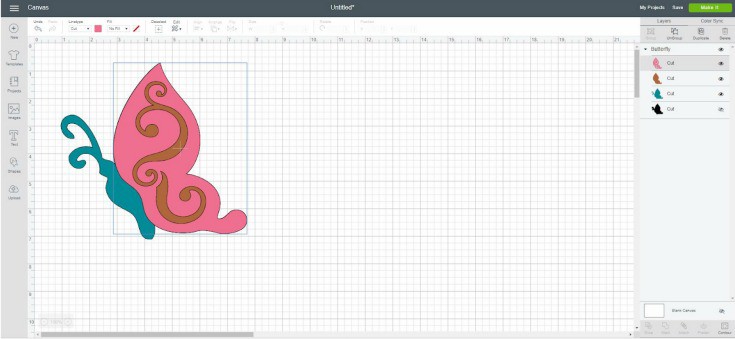
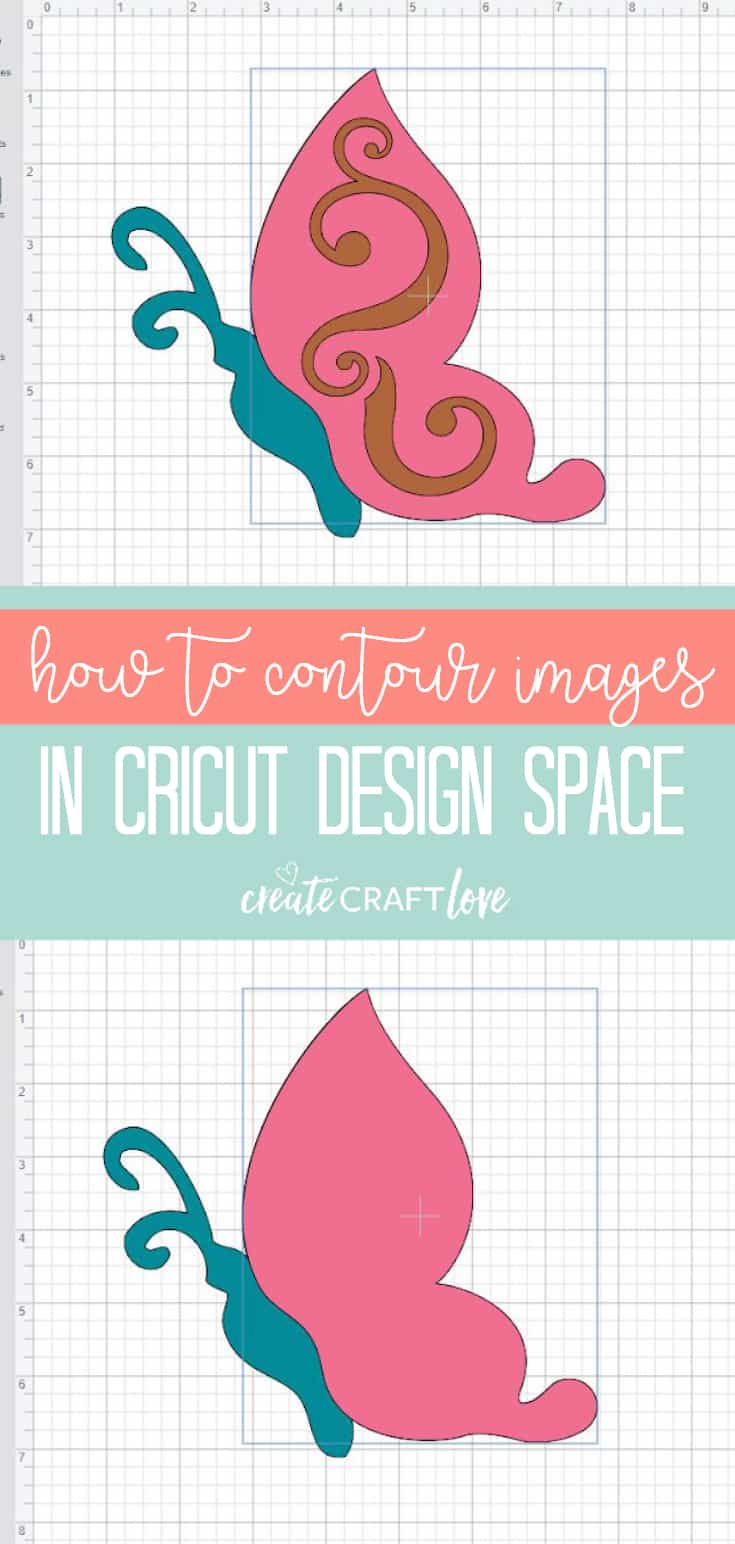
Let’s start by using the same image.  Search for Butterfly #M41173.  For the sake of argument, let’s pretend we do not want the detail on the butterfly’s wings.  Select the layer that has the wing detail in the layer menu to the right of your canvas.  (This layer also contains the outline for the wing, hence why we would not want to hide the entire layer.) Then click “contour” in the lower right hand corner.
This action will bring up the hide contour window with the individual components of the layer.
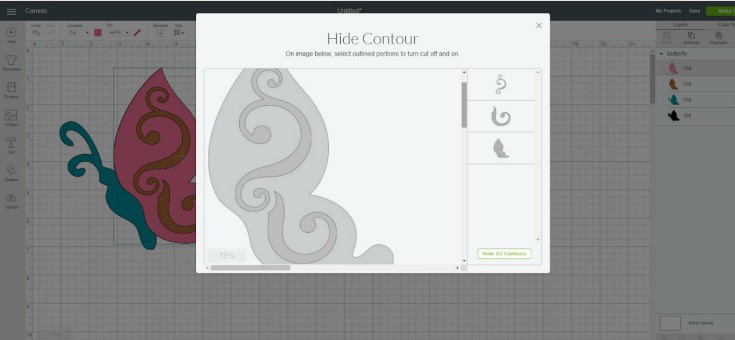
On the image below, select the outlined portions to turn on and off.  Click off the swirls in the middle of the butterfly wing.  The components you have turned off will appear grayed out in the menu on the right of the hide contour window.
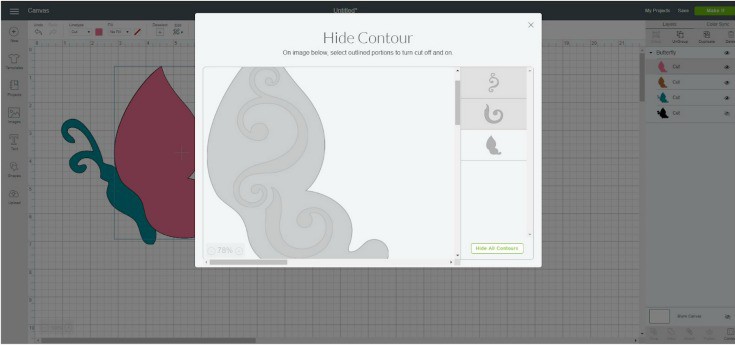
Close the hide contour window and your butterfly wing will no longer have the swirls in the middle.
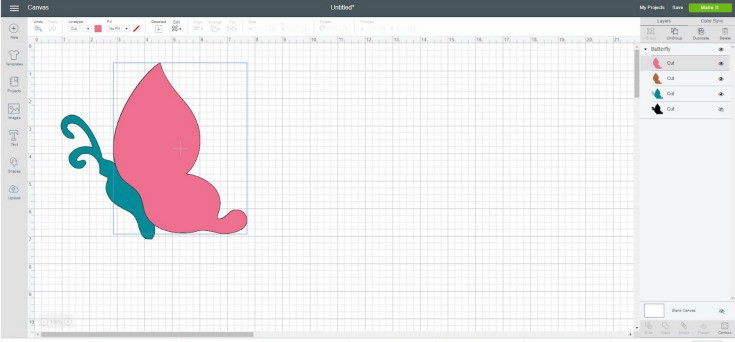
If you change your mind or want to re-add the swirls, simply repeat the process detailed above.

Of note:  This feature is not included in the Cricut app.  These more sophisticated features must be accessed on the desktop version of Cricut Design Space.

Isn’t that a neat feature?  Now you can customize the images you find in Cricut specific to the project you have in mind!
How to contour images in Cricut Design Space! #cricut #designspace

About Us

We are passionate about sharing simple, fun DIY projects that anyone can tackle—whether you're a seasoned crafter or just getting started. From seasonal décor to everyday crafts, we love inspiring others to make something beautiful with their own two hands.

« Mom Life Tshirt | Free SVG File
DIY Summer Tote Bag with Cricut »

Popular Posts

Winter Decorations for After Christmas
This Gold Leaf Mason Jar Vase is keeping with the trends this spring! #spring #gold #goldleaf #masonjars

HALLOWEEN

Witch Hat Straw Toppers are perfect for classroom parties!
Spice up some plain cupcakes with these Retro Halloween Cupcake Toppers!
This Snapchat Filter Halloween Costume is a an EASY DIY idea for the upcoming festivities!

THANKSGIVING

Accessorize your holiday table with these Easy Chalkboard Place Cards! via createcraftlove.com for the36thavenue.com #tablescapes #placecards #holidays
These Pumpkin Spice Cupcakes are everything fall is meant to be! via createcraftlove.com

CHRISTMAS

Top 3 Christmas Crafts with Cricut as seen on createcraftlove.com!
Vintage feel to this Paper Christmas Village!
© 2019 · Create Craft Love·
  • Pinterest
  • Facebook
  • Twitter
