• Home
  • Crafts
    • Wreaths
    • Back to School Crafts
    • Christmas Crafts
    • Father’s Day Crafts
    • Fourth of July Crafts
    • Halloween Crafts
    • Kid’s Projects
    • Mother’s Day Crafts
    • Thanksgiving Crafts
    • Valentine’s Day Crafts
  • Recipes
    • Christmas Recipes
    • Fourth of July Recipes
    • Halloween Recipes
    • Thanksgiving Recipes
    • Appetizers
    • Beverages
    • Breakfast
    • Dessert
    • Main Dish
    • Side Dish
    • Soups & Salads
    • Snacks
  • Freebies
    • Back to School Printables
    • Christmas Printables
    • Father’s Day Printables
    • Fourth of July Printables
    • Halloween Printables
    • Mother’s Day Printables
    • Thanksgiving Printables
    • Valentine’s Day Printables
  • xTool
  • About
    • About CCL
    • Privacy Policy
    • Disclosure
    • Contact Us
    • Email
    • Facebook
    • Instagram
    • Pinterest
    • RSS
    • Twitter

Create Craft Love

April 3, 2019 ·

Overview of Cricut Design Space

Cricut Projects

  • Facebook
  • Twitter

This post may contain affiliate links. See my disclosure policy for more details.

Let’s take a quick overview of Cricut Design Space to get started using your new favorite crafting tool!
Quick overview of Cricut Design Space #cricut #designspace

If you’re new to Cricut, the software can seem a little daunting when you first begin.  But have no fear!  I’m going to give you a basic overview of the features of Cricut Design Space.  I have also provided tutorials for using those features and functions within the software.

Overview of Cricut Design Space

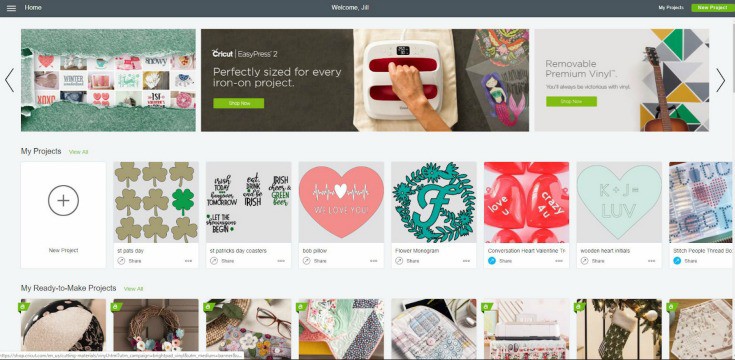
When you log in to Cricut Design Space, you will land on the home page.  Here you can see any projects you have saved along with featured “Make It Now” projects.
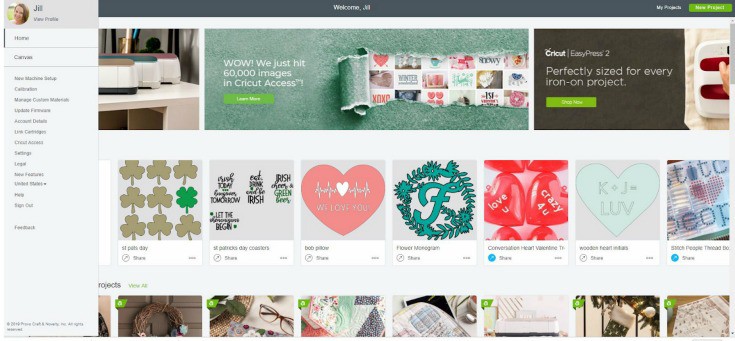
In the upper left hand corner, you will notice three lines next to the home button.  Clicking on those lines, drops down your account menu.  From here you can set up your new machine!  You can also calibrate, update firmware, link cartridges, Cricut Access, and manage your account details.
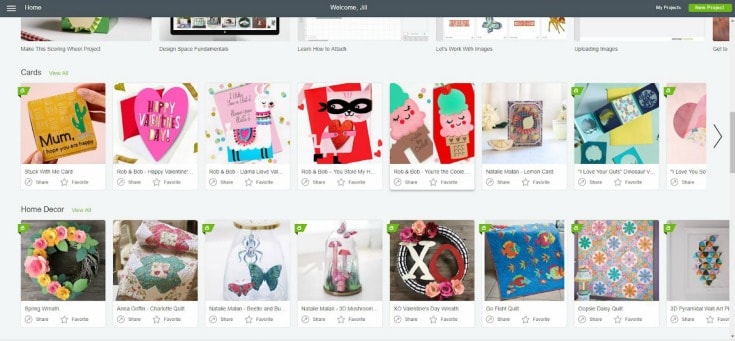
If you scroll down, you will see the “Make It Now” projects are divided into categories that appear on a ribbon menu.  
There are 3 ways to begin a new project from the home screen.  You can click on “canvas” in the drop down menu.  Another way to begin a new project is to click the green “new project” button in the upper right hand corner.  Or click the white “new project” button next to your saved projects.
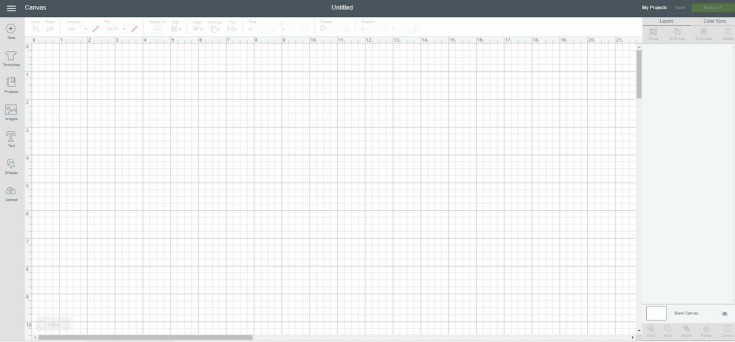
The menu to your left is the side menu bar.  From there you can use a template to see how your design will look on different materials and items.  You can search the image library, add text, add shapes, or upload images. 
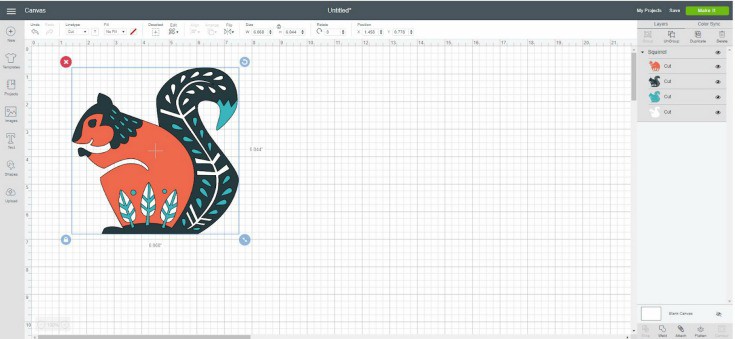
The top menu bar is where you can manipulate the image and its layers.  From here you can change the linetype (cut, score, or draw), arrange, change orientation and resize.

The panel menu to the right is where you perform the various actions to change the image and its layers.  Here is where you can group/ungroup, duplicate or delete layers.  You can also slice, weld, attach, flatten and contour.

We will review these actions in different posts.
Quick overview of Cricut Design Space #cricut #designspace

About Us

We are passionate about sharing simple, fun DIY projects that anyone can tackle—whether you're a seasoned crafter or just getting started. From seasonal décor to everyday crafts, we love inspiring others to make something beautiful with their own two hands.

« Easter Bunny Coffee Mug | Free SVG File
How to Upload Images into Cricut Design Space »

Popular Posts

Winter Decorations for After Christmas
This Gold Leaf Mason Jar Vase is keeping with the trends this spring! #spring #gold #goldleaf #masonjars

HALLOWEEN

Whether you partake in an alcoholic beverage or not, these are the cutest Halloween Mason Jar Drink Glasses! via createcraftlove.com
This Cauldron Bubbles Printable is great for candy and non-candy Halloween treats! via createcraftlove.com

THANKSGIVING

These Pumpkin Spice Cupcakes are everything fall is meant to be! via createcraftlove.com

CHRISTMAS

Winter Wreath Workshop Round Up at createcraftlove.com
This Foam Block Snowman is an easy and affordable DIY gift idea for the holidays! via createcraftlove.com #spon #makeitfuncrafts
© 2019 · Create Craft Love·
  • Pinterest
  • Facebook
  • Twitter
