• Home
  • Crafts
    • Wreaths
    • Back to School Crafts
    • Christmas Crafts
    • Father’s Day Crafts
    • Fourth of July Crafts
    • Halloween Crafts
    • Kid’s Projects
    • Mother’s Day Crafts
    • Thanksgiving Crafts
    • Valentine’s Day Crafts
  • Recipes
    • Christmas Recipes
    • Fourth of July Recipes
    • Halloween Recipes
    • Thanksgiving Recipes
    • Appetizers
    • Beverages
    • Breakfast
    • Dessert
    • Main Dish
    • Side Dish
    • Soups & Salads
    • Snacks
  • Freebies
    • Back to School Printables
    • Christmas Printables
    • Father’s Day Printables
    • Fourth of July Printables
    • Halloween Printables
    • Mother’s Day Printables
    • Thanksgiving Printables
    • Valentine’s Day Printables
  • xTool
  • About
    • About CCL
    • Privacy Policy
    • Disclosure
    • Contact Us
    • Email
    • Facebook
    • Instagram
    • Pinterest
    • RSS
    • Twitter

Create Craft Love

April 24, 2019 ·

How to Slice and Weld in Cricut Design Space

Cricut Projects

  • Facebook
  • Twitter

This post may contain affiliate links. See my disclosure policy for more details.

Learn how to slice and weld in Cricut Design Space!
Learn how to slice and weld in Cricut Design Space! #cricut #designspace

How to Slice and Weld in Design Space

The slice and weld tools allow you to create new cut lines in multi-layer images.  These tools are invaluable!  They really allow you to bring your imagination to life.

Slice Tool

Basically, the slice tool acts like a cookie cutter allowing you to cut a shape from another shape or cut out text.  This tool splits two overlapping layers into separate parts.  The key word here is TWO.  You can only work with two layers at a time when using the slice tool.  After the layers have been sliced, they will appear as separate layers in the layers panel.

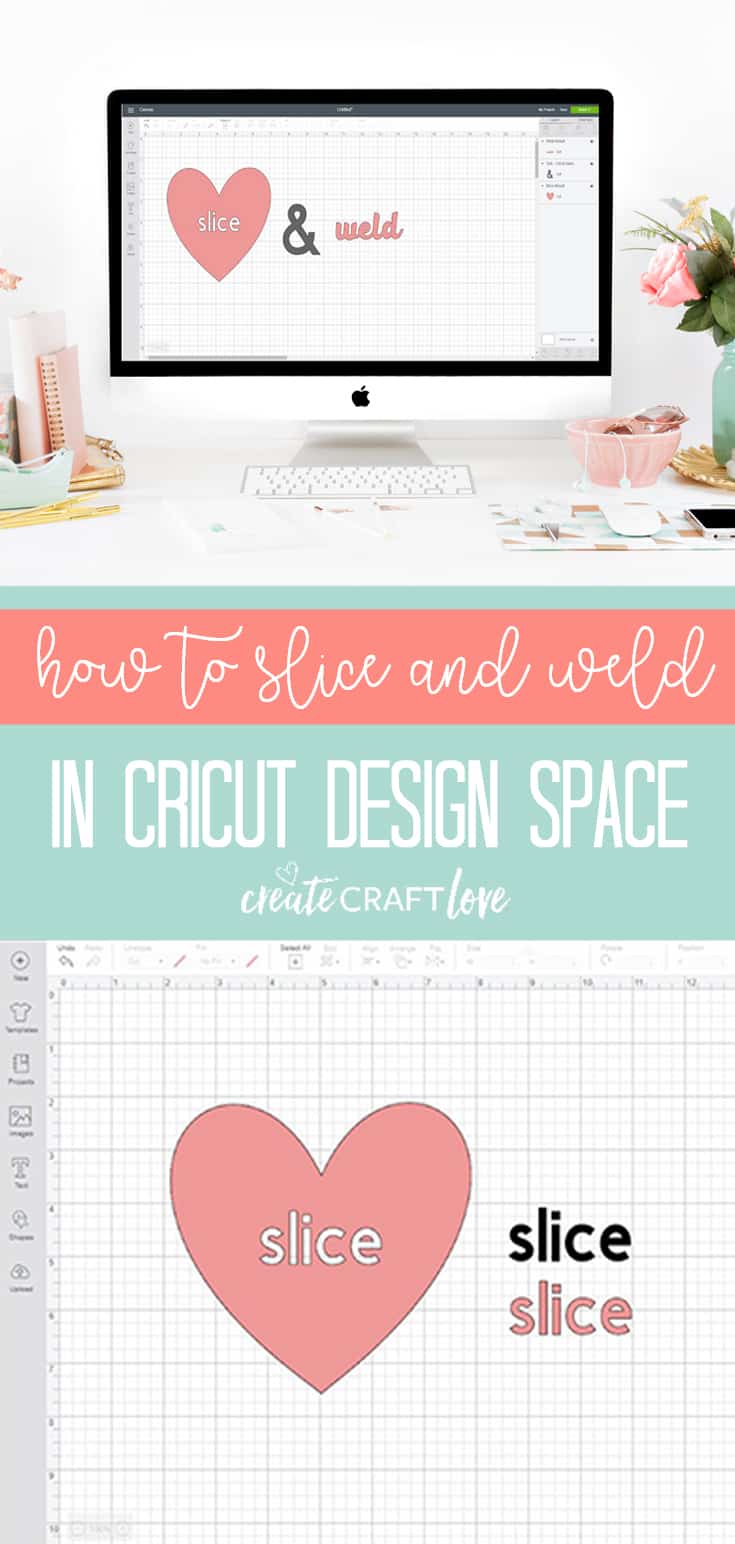
Arrange the heart and text so they are overlapping.  Click “select all” in the edit menu on top.
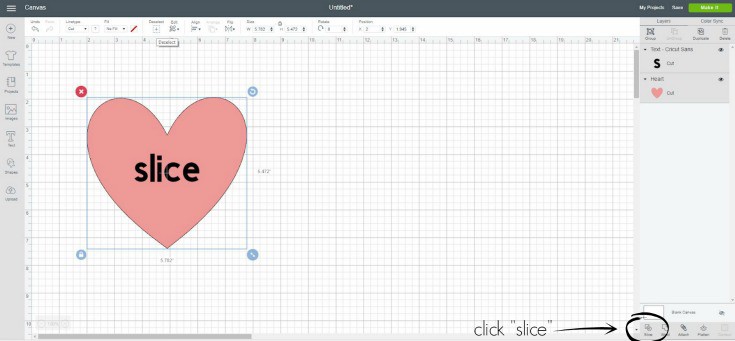
Click “slice” at the bottom of the layers panel.  Now you have three different layers.  The black wording was the cookie cutter and by clicking “slice”, you cut out that part of the dough and sat it aside. 
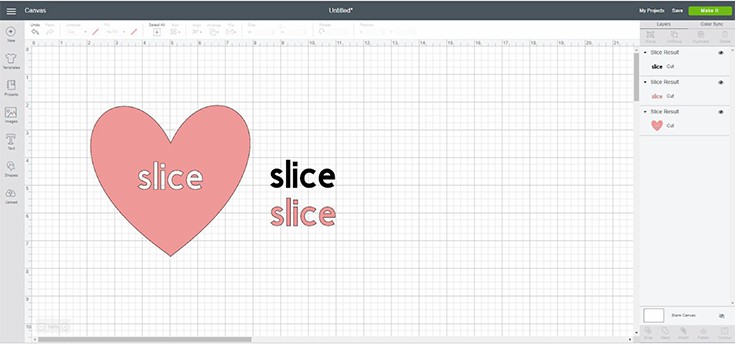
You can delete or hide the layers you do not want to use in your design.

Weld Tool

The weld tool allows you to combine images and creates an outline by removing any overlapping cut lines.  It’s easiest to see on text but you can do this with images too!

Combine your letters so they are overlapping.
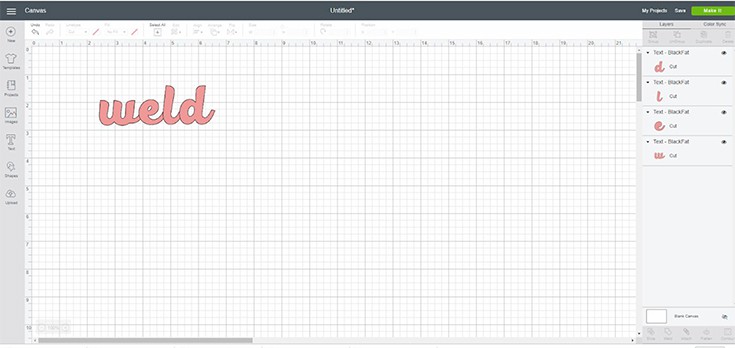
Click “select all” and then click “weld” at the bottom of the layers panel.
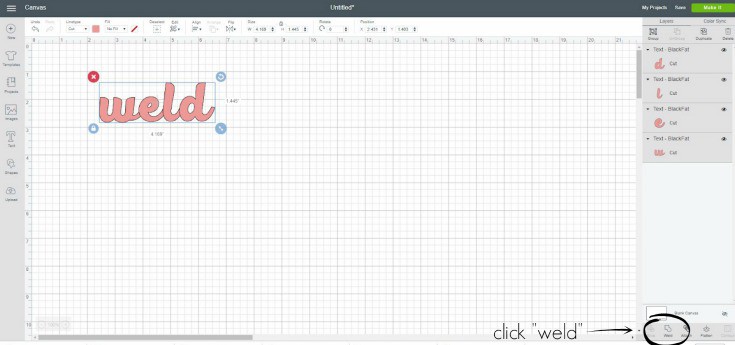
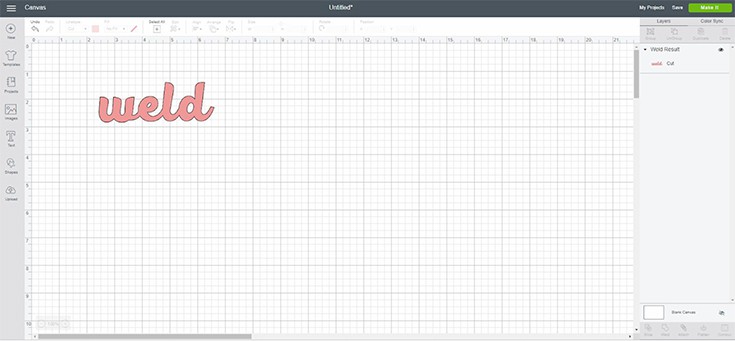
You can see how the outlines of the individual letters that were overlapped are now gone and you are left with the outline of the entire word.
Learning how to use slice and weld is super easy!  It is a valuable tool to have in your back pocket and takes your understanding of Design Space to the next level.

Learn how to slice and weld in Cricut Design Space! #cricut #designspace

About Us

We are passionate about sharing simple, fun DIY projects that anyone can tackle—whether you're a seasoned crafter or just getting started. From seasonal décor to everyday crafts, we love inspiring others to make something beautiful with their own two hands.

« Floral Monogram Mini Sign with Cricut
Mom Life Tshirt | Free SVG File »

Popular Posts

Winter Decorations for After Christmas
This Gold Leaf Mason Jar Vase is keeping with the trends this spring! #spring #gold #goldleaf #masonjars

HALLOWEEN

These Halloween Party Cups are so easy to make, it's scary! via createcraftlove.com
Halloween Wreath via createcraftlove.com #halloween #wreath

THANKSGIVING

Create these Gold Pumpkin Votives for your Thanksgiving dinner table! via createcraftlove.com for @the36thavenue
These Thankful Printables are great to set out on the Thanksgiving table to see what everyone is appreciative of today! via createcraftlove.com

CHRISTMAS

This Snowflake Door Hanging can remain up all winter long! via createcraftlove.com
More Pool Noodle Hacks: Christmas Edition! via createcraftlove.com
© 2019 · Create Craft Love·
  • Pinterest
  • Facebook
  • Twitter